
Womp Teams
Creating a team, inviting members, roles, the team library, and how team billing works.Use this when: you want to set up a shared Womp workspace, invite people, change someone's role, or understand team pricing.
Don't use this for: sharing one project with a collaborator, or personal plans. Read Community and publishing, and Credits and plans.
A team is a shared workspace with its own projects, library and members. Your personal workspace stays separate.
Price
| Billing | Price |
|---|---|
| Monthly | $24.99 a seat a month |
| Annual | $19.99 a seat a month, billed $239.88 a seat a year |
- You pay for at least 5 seats, even with fewer editors.
- Each editor uses a seat. Viewers are free.
- Each seat gets 15,000 AI credits a month.
- The Team plan includes everything in Pro, plus admin controls, a shared library for fonts and 3D objects, real-time collaboration and Slack support.
Create a team
- Open your avatar menu, then
Workspace:and chooseCreate a team…. You can also clickCreate a teamon the Team plan in the plans dialog. - Enter a
Team nameand add an image.
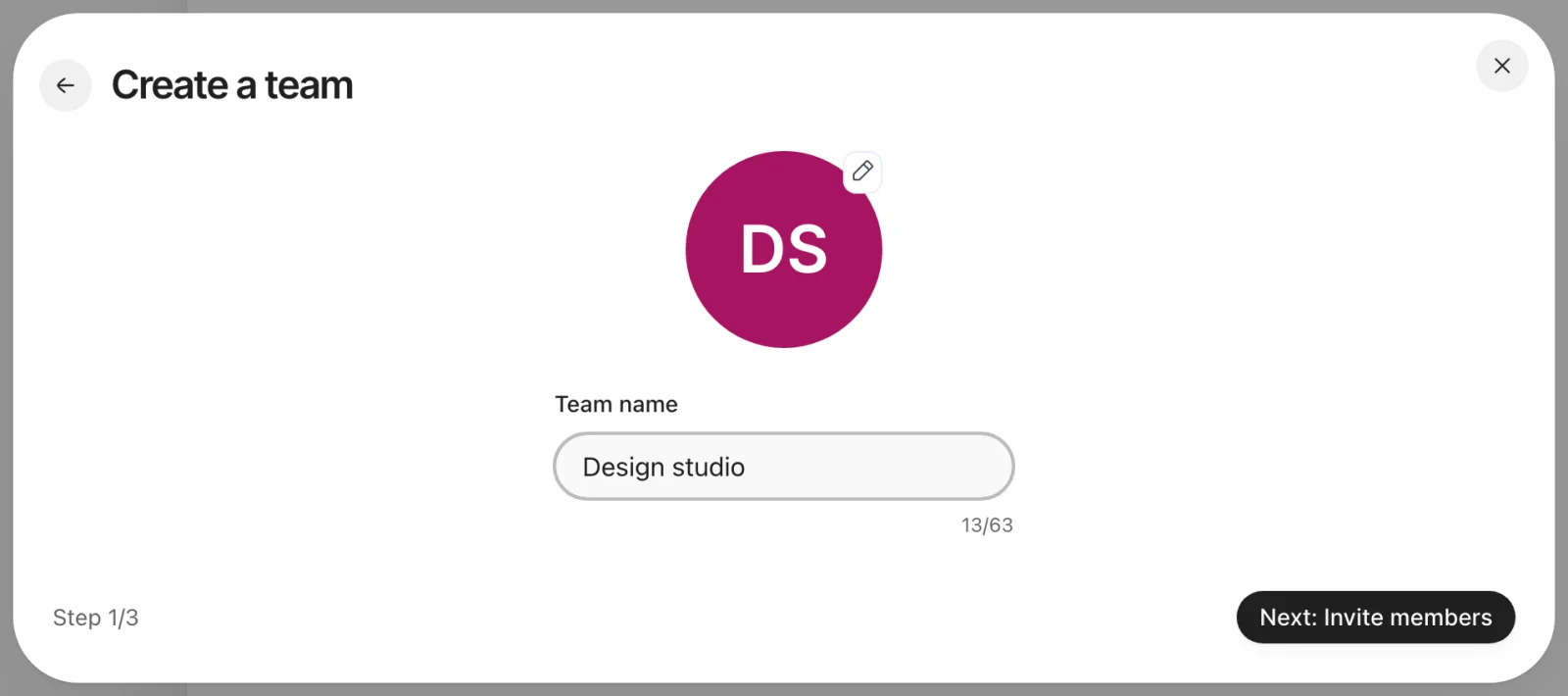
Step 1 of Create a team. The name here is an example; Womp suggests one from your username.
- Click
Next: Invite members. Invite members by name or email asCan editorCan view, then clickNext: Payment. - Choose monthly or annual billing and pay.
Switch workspace
Open your avatar menu, then Workspace:. Pick Personal or a team. Inside a team, the left menu shows Team library instead of Library.
Invite members
- In the team, open your avatar menu and choose
Manage team, thenTeam members. - Under
Invite members, search for a name or type an email address. - Choose
Can editorCan view, then invite.
The person sees Join team with Accept Invitation and Decline. You can invite an email address that has no Womp account yet. If you are not an admin, an admin is notified of your invite. Viewers can invite too, but only as Can view. Billing updates when an editor accepts.
Roles
| Role | What it can do |
|---|---|
| Owner | The team's creator. Also holds the admin and billing rights. Only the owner can delete the team in Team details. |
| Admin rights | Change members between Can edit and Can view, remove members, edit the team name and picture. |
| Billing rights | See Billing and plans in the team's settings. |
Editor (Can edit) | Edits, exports and prints team projects. Uses a seat. |
Viewer (Can view) | Views team projects. Cannot edit or export. Free. |
Any member except the owner can leave: in Team members, open your own role menu, choose Leave, then Leave team. Leaving removes your access to every project you and the team made.
Team settings
Inside a team, settings show:
Team details: name and picture. The owner seesDelete teamhere, which deletes the team and everything in it.Team members: invites, roles and removal.Spark credits: the team's credits. Not shown to viewers.Billing and plans: the team's plan,Payment methodsandBilling history, withCancel planorRenew plan. Only for the billing role.
Team files
To set who in the team can open a file, go to the Projects page, open the file's menu and choose Share project. Under Access mode, pick:
People within team can access: every team member can open it, with their team role (editors edit, viewers view).Restricted: only people it is shared with.
Team files stay inside the team:
- Team files cannot be published to the community.
Invite collaboratorsin the editor'sSharemenu is not available for team files.
Use instead
- Wrong move: quoting a team price for 2 people as 2 seats. Why: a team pays for at least 5 seats. Right move: price it as 5 seats.
- Wrong move: adding a client as an editor so they can look at work. Why: each editor uses a paid seat. Right move: invite them with
Can view, which is free. - Wrong move: creating a team to publish work to the community. Why: team files cannot be published. Right move: publish from your personal workspace. See Community and publishing.
Last checked: 2026-11-10. Womp version: Womp web app, November 2026.