Docs
Get started
Make
Print
Credits and plans
Agents and developers
Account and help
Changelog
Keyboard shortcuts
Every shortcut in the editor's Keyboard shortcuts list, plus undo, redo, copy, paste and delete.Use this when: you need the key for an editor action, or want to explain one.
Don't use this for: what an action does. Read the Modelling pages for that.
Press Shift + ? in a project to open the Keyboard shortcuts list. On a Mac, ⌘ replaces Ctrl and ⌥ replaces Alt.
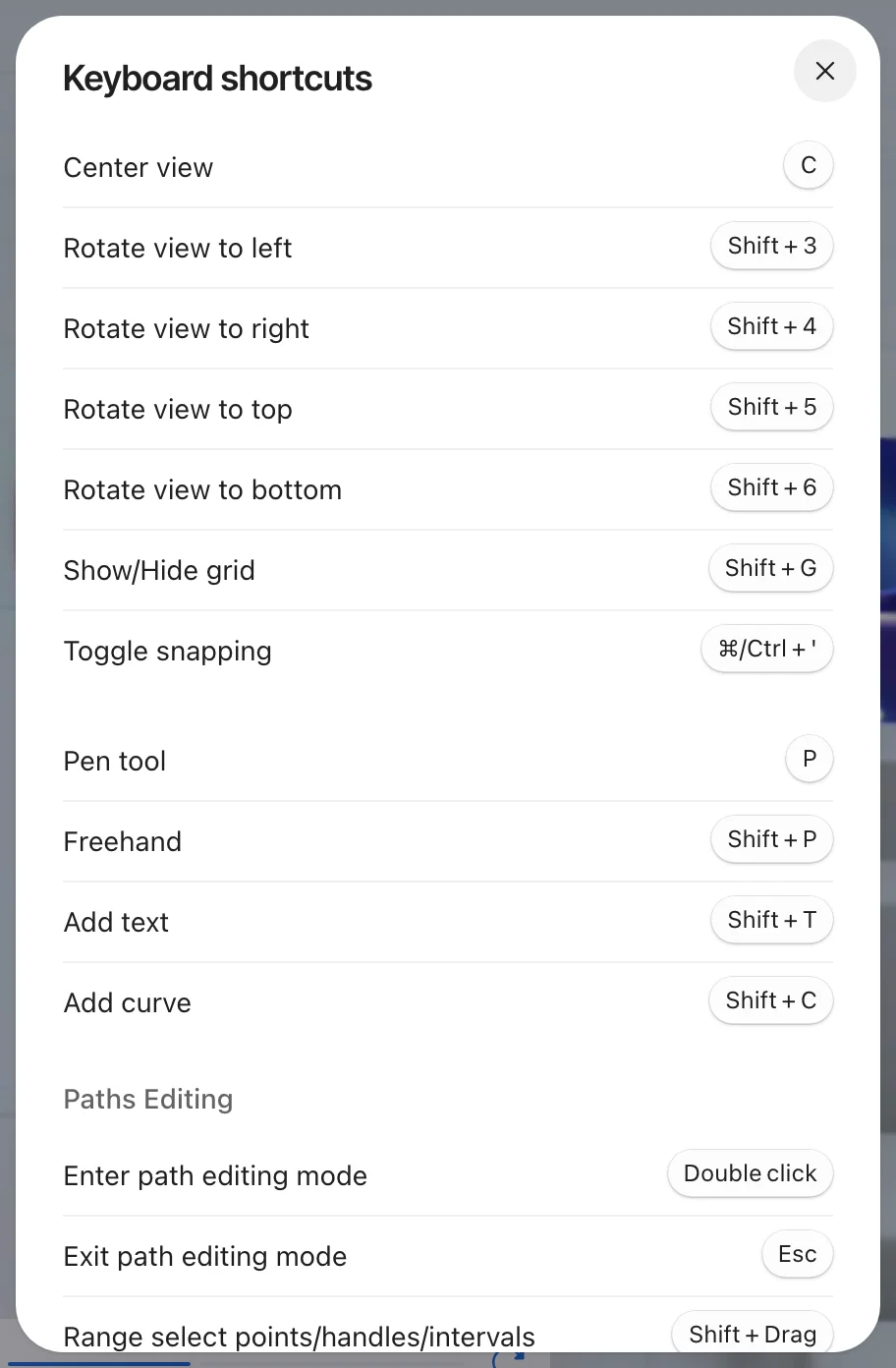
The top of the Keyboard shortcuts list. Scroll it for the rest.
Edit
| Action | Shortcut |
|---|---|
| Undo | ⌘/Ctrl + Z |
| Redo | ⌘/Ctrl + Shift + Z or ⌘/Ctrl + Y |
| Copy | ⌘/Ctrl + C |
| Paste | ⌘/Ctrl + V |
| Duplicate selection | ⌘/Ctrl + D |
| Select all | ⌘/Ctrl + A |
| Delete selection | Delete / Backspace |
| Copy while you move | Hold Alt/⌥ and drag a move handle |
View
| Action | Shortcut |
|---|---|
| Center view | C |
| Rotate view to left | Shift + 3 |
| Rotate view to right | Shift + 4 |
| Rotate view to top | Shift + 5 |
| Rotate view to bottom | Shift + 6 |
| Show/Hide grid | Shift + G |
| Toggle snapping | ⌘/Ctrl + ' |
| Switch to Flow view | Alt/⌥ + 1 |
| Switch to Split view | Alt/⌥ + 2 |
| Switch to 3D Stage view | Alt/⌥ + 3 |
Add and draw
| Action | Shortcut |
|---|---|
| Open objects menu | O |
| Open materials menu | M |
| Add curve | Shift + C |
| Add text | Shift + T |
| Pen tool | P |
| Freehand | Shift + P |
The Pen and Freehand tools show the Pro mark.
Organise
| Action | Shortcut |
|---|---|
| Group selection | ⌘/Ctrl + G |
| Break group | ⌘/Ctrl + Shift + G |
| Union selection | Shift + M |
| Break union | ⌘/Ctrl + Shift + G |
| Lock/Unlock selection | ⌘/Ctrl + Shift + L |
| Show/Hide selection | ⌘/Ctrl + Shift + H |
| Move up | ⌘/Ctrl + ] |
| Move down | ⌘/Ctrl + [ |
| Send to top | ] |
| Send to bottom | [ |
Form
| Action | Shortcut |
|---|---|
| Positive | Alt/⌥ + "+" |
| Negative | Alt/⌥ + "-" |
| Stain (Pro) | Alt/⌥ + Shift + "+" |
| Intersect (Pro) | Alt/⌥ + Shift + "-" |
See Form and Mirror.
Paths editing
| Action | Shortcut |
|---|---|
| Enter path editing mode | Double click |
| Exit path editing mode | Esc |
| Range select points/handles/intervals | Shift + Drag |
| Add to selection | Shift + Click |
| Delete selected item | Delete / Backspace |
| Clear selection | Click empty space |
| Insert point on curve | Alt/⌥ + Click (on edge) |
| Delete point | Alt/⌥ + Click (on point) |
| Delete handle | Alt/⌥ + Click (on handle) |
| Create a free handle | Alt/⌥ + Drag (on point) |
| Create aligned handles (equal length) | ⌘/Ctrl + Drag (on point) |
| Edit handle freely | Alt/⌥ + Drag (on handle) |
| Strong handle alignment | ⌘/Ctrl + Drag (on handle) |
| Constrain to 15° increments | Shift + Drag (on handle) |
With the Pen tool, Click + Hold + Drag creates a point with handles.
Share and scene
| Action | Shortcut |
|---|---|
| Publish project | ⌘/Ctrl + Shift + D |
| Download image | ⌘/Ctrl + Shift + E |
| Start recording | ⌘/Ctrl + Shift + V |
| Randomize backdrop color | Shift + B |
| Randomize global lighting | Shift + L |
| Show all keyboard shortcuts | Shift + ? |
Womp saves your project automatically. There is no save shortcut.
Use instead
- Wrong move: pressing
Shift + "+"forStain. Why: theStainshortcut isAlt/⌥ + Shift + "+". Right move: holdAlt/⌥andShift, then press+. - Wrong move: telling a user to press
⌘/Ctrl + Sto save. Why: Womp saves automatically and has no save shortcut. Right move: tell them their work is already saved. - Wrong move: quoting a key to switch between move, rotate and scale. Why: all handles are on the object at the same time, so there is no mode key. Right move: tell them to drag the handle they need.
Last checked: 2026-11-10. Womp version: Womp web app, November 2026.