Community and publishing
Browsing Discover, publishing a project, hashtags, licenses, liking, remixing and entering events.Use this when: you want to share a project with the Womp community, find or remix others' work, or enter an event.
Don't use this for: sharing a private project with collaborators or exporting files. Read Importing and exporting.
Discover
Discover in the left menu opens into:
Showcase: work picked by the Womp team.Community: projects published by Womp users.Events: community contests and their entries.Hire creators: verified creators you can contact.Chats: channels for talking with the community.
The left menu also has Assets (Smart Templates, Assets and Materials) and Order Prints, where you can browse featured prints and order them.
The Community feed sorts by Hottest, Staff picks, Newest or Pro.
Open a community project
Click a project to open its preview. From there you can:
- Like it with the heart, or click it again to unlike.
- Comment on it.
Remixit to make your own copy to edit.- Open the
...menu forExport Image,Export Model,Copy LinkandReport this project.
What you can do depends on the creator's license. If remixing is off, the button says "Remix is disabled by project owner". A Pro project needs Pro to remix (Get Pro to Remix).
Publish a project
- In the project, click
Share, thenPublish to community. You can also usePublish projectin the project's menu on the Projects page. - Pick a
Thumbnailshape:Square,LandscapeorPortrait. TickFloor gridto show the grid in it. - Set the
Titleand an optionalDescription(up to 1,000 characters). - Add
Hashtags. - Optional: tick
Age restrictedfor mature content, orShare in#share-your-wompto post it to that channel. - Choose a
License. - Click
Publish to Community.
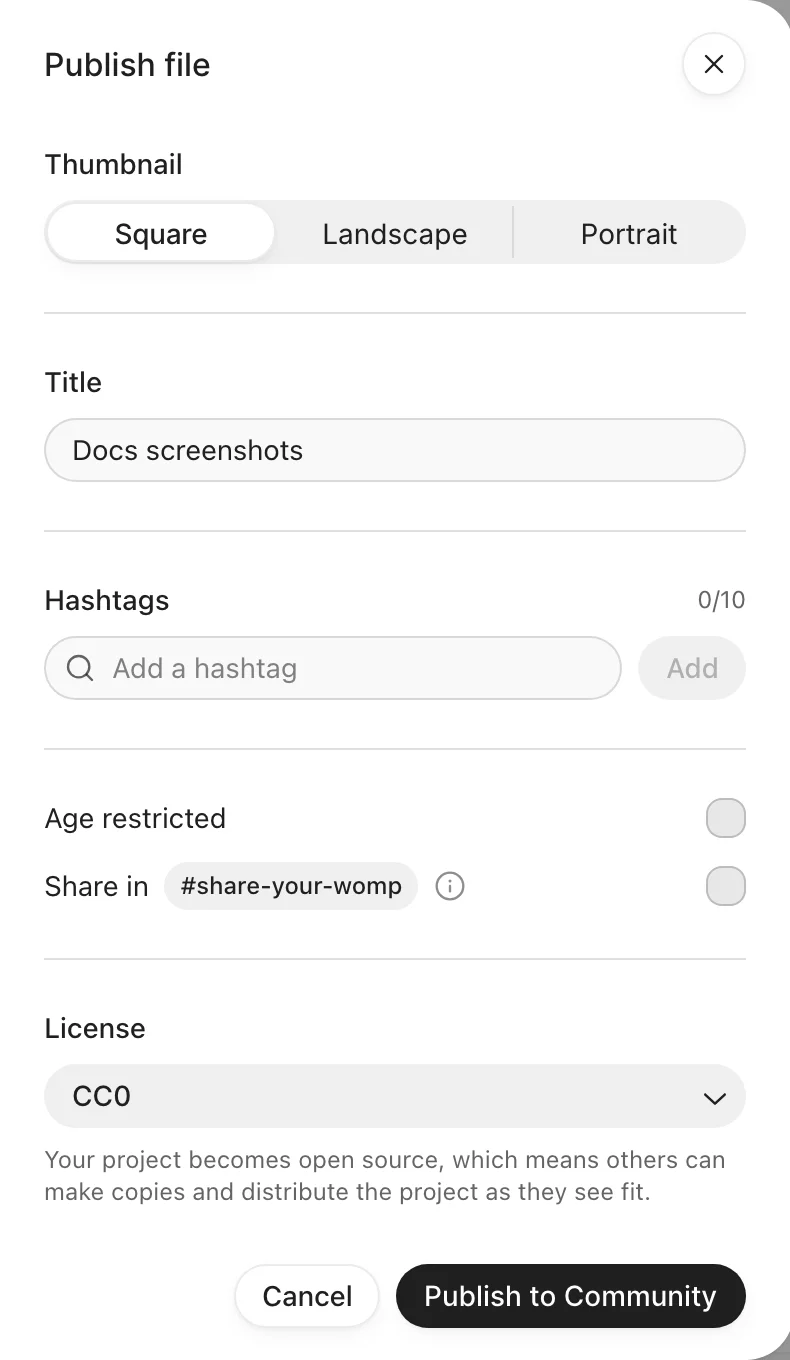
The publish settings. Floor grid and Description are not shown in this crop.
Some files cannot be published:
- Team files ("Team files can't be published to the community right now.").
- Flow-only files. Open the file in Stage to publish it.
- A Pro project, unless you have Pro.
Hashtags
- Up to 10 hashtags a project.
- Each hashtag is at most 25 characters, including the
#. - Press Enter or type a comma to add one. Spaces are removed.
- Duplicate and empty hashtags are rejected.
Licenses
| License | Others can remix | Others can download images, video and models |
|---|---|---|
CC0 (No rights reserved) | Yes | Yes |
CC BY (Attribution) | Yes, with credit | Yes, with credit |
CC BY-ND (No derivatives) | No | Yes, with credit |
All rights reserved | No | No |
Unpublish
On the Projects page, open the project's menu and choose Unpublish project. You can also use Unpublish project in the project's preview.
Liked projects
Your liked projects are at womp.com/my-likes. There is no Liked entry in the left menu. A project you liked disappears from the list if its creator unpublishes it.
Events
Womp runs contests and challenges. Each event has a hashtag.
- Open
Discover, thenEvents, to see events with their dates. A live event showsOngoing. - To enter, publish your project with the event's hashtag. While an event is open, the publish dialog shows it under
Enter events:. Click it to add the hashtag. - Entries show under the event on the
Eventspage.
Use instead
- Wrong move: publishing a project to share it privately with a collaborator. Why: publishing makes it public to the whole community. Right move: use
Invite collaboratorsin theSharemenu, orShare projectin the project's menu on the Projects page. - Wrong move: choosing
CC BY-NDand expecting nobody to download your model. Why: CC BY-ND allows downloads, only remixing is blocked. Right move: chooseAll rights reserved. - Wrong move: looking for a submit button to enter an event. Why: there is none. Right move: publish with the event's hashtag.
Last checked: 2026-11-10. Womp version: Womp web app, November 2026.