Animation and video
Animate the camera with presets, animate objects with keyframes on the Timeline, record your screen, and export video.Use this when: you want a turntable or fly-around video of a model, moving objects, or a recording of your work in the editor.
Don't use this for: still images and camera setup. Read Lights and camera.
Womp makes video in three ways: a camera animation from a preset, objects animated with keyframes on the Timeline, or a screen recording of what you do in the editor.
Camera animation
- Open the
Cameratab in the right panel. - Turn on
Camera animation. You cannot use it whileFrameis on. - Choose a
Preset:Turn: has no settings other than the duration.Fly: setTurns,Pitch Offset,Distance OffsetandSmooth.Path(ALPHA): move the camera, then click+to add each control point. The trash button clears them. Turn onLink last and first pointfor a loop.Smoothrounds the path.Twist(Pro projects): setTurns,Radius,FromandTo.Sine(Pro projects): setHorizontal RadiusandVertical Radius.
- Set
Duration (sec). The shortest is 0.5 seconds. - Click
Export video.
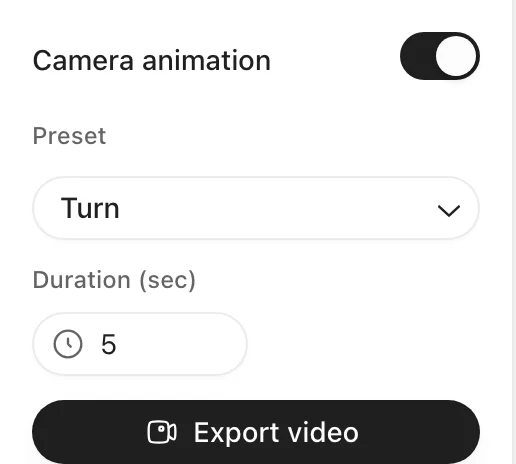
Camera animation on, with the Turn preset and a 5 second duration.
Changes to the project during recording do not appear in the result.
You can also start from the Share menu: Download camera animation ("Render from camera presets").
Timeline (keyframes)
The Timeline animates objects and lights over time. It is in Pro projects on the current (v2) engine only and is marked experimental. Open Functions in the left toolbar and choose Timeline.
- If the project has no timeline yet, click
Create Timeline. - Select the objects to animate.
- Optional: use
Property filterto choose which properties to record. - Move the playhead to a time, set the pose, then click
Set Keyframes(the red record button). - Repeat at other times. Womp moves the object between the keyframes.
Other controls:
Jump to start,Previous frame,Next frameandJump to end, and play or pause.Copy selected keyframes,Paste keyframesandRemove selected keyframes.Set curve for selected keyframes:Linear,Step,Ease In,Ease OutorEase In Out.Timeline settings:Playback FPSandDuration (seconds).- Click the sec or fps label to switch how time is shown.
What you cannot animate directly:
- Groups: "a Group object, which cannot be animated and will be ignored." Use a union instead.
- Curves: a curve is a set of points. Animate its points, or put the curve in a union and animate the union.
If an object turns around a strange point, open Precise Union Pivot in Functions (Pro) and turn on Enable Precise Pivot. Set the pivot before you record. Changing it later can change how existing keyframes look.
Export a Timeline animation
Click Export animation on the Timeline. The guide tells you to turn on Camera animation, pick Sine and set both radii to zero so the camera does not move. Auto Setup does this for you. Then click Export Video. The clip is as long as the timeline.
Screen recording
Click the record button in the top bar, or choose Download screen recording in the Share menu. Womp records what you do in the editor, for up to 30 seconds. Stop the recording, then export it.
If you close the export without rendering, Womp keeps the recording for up to 24 hours so you can download it later.
Export settings
| Setting | Options |
|---|---|
| Resolution | 720p, 1080p, 2K, 4K |
| Frame rate | 24fps, 30fps, 60fps |
| Format | MP4, WebM, Animated PNG, PNG Sequence |
Quality | A slider for render quality. |
Background | Turn off for a transparent background. MP4 does not support transparency. |
Floor grid | Shows the floor grid. Needs Background. |
PNG Sequenceis Pro and in alpha.4Kand60fpsare included in Pro. On the free plan they cost Womples. See Womples.
Use instead
- Wrong move: turning on
FrameandCamera animationtogether. Why: only one can be on at a time. Right move: turn offFrame, then animate. - Wrong move: animating a group on the Timeline. Why: groups cannot be animated and are skipped. Right move: make a union and animate the union.
- Wrong move: exporting
MP4for a transparent background. Why:MP4does not support transparency. Right move: chooseWebMorAnimated PNGand turn offBackground.
Last checked: 2026-11-10. Womp version: Womp web app, November 2026.