Shapes and Goop
The shapes you can add, how to move and resize them, and how Goop blends shapes together.Use this when: you add a shape, change its type or size, or want shapes to blend smoothly.
Don't use this for: cutting or masking shapes, or reflecting them. Read Form and Mirror.
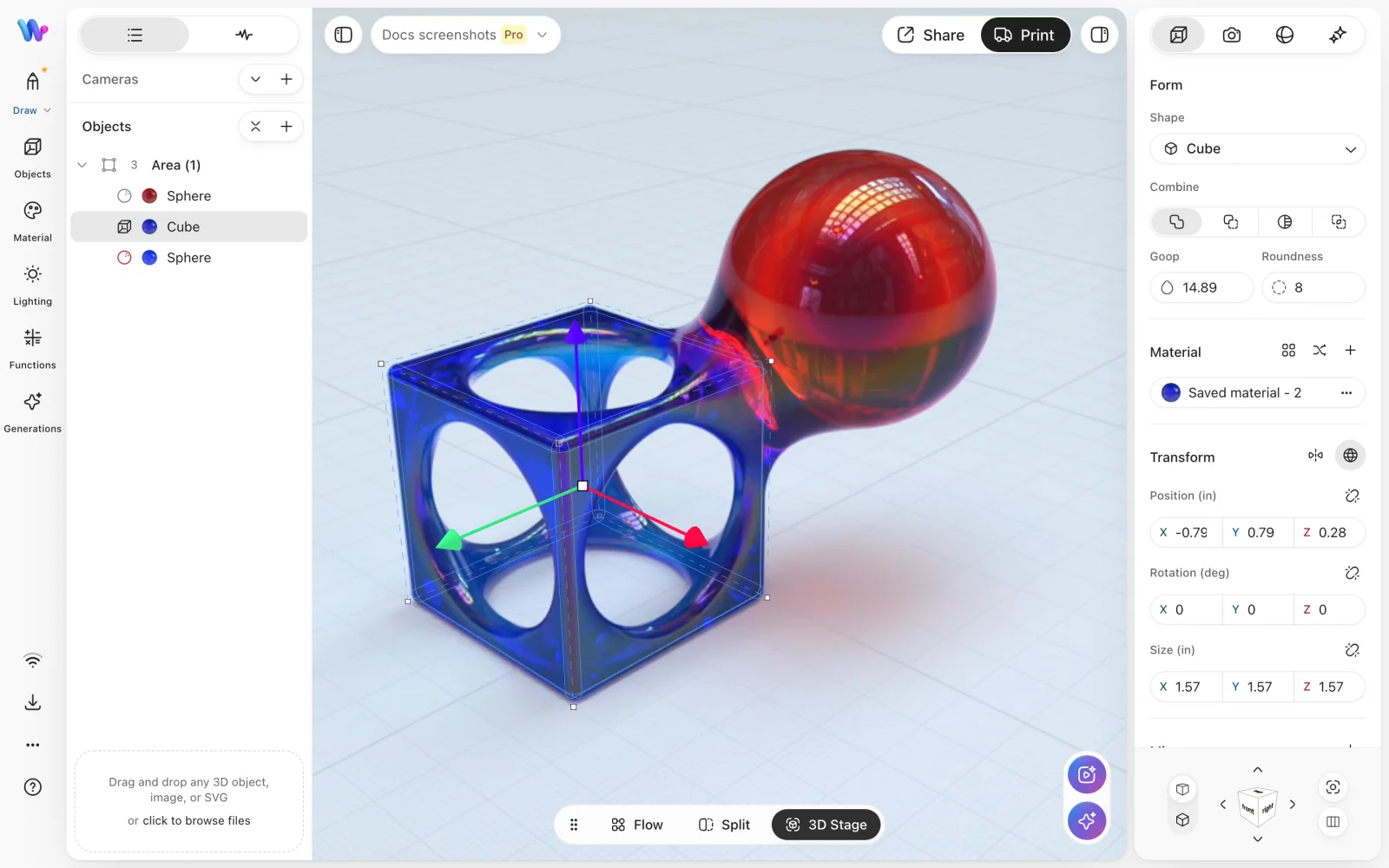
A selected shape shows handles on the canvas and its settings in the inspector on the right.
Add a shape
- Press
O(Open objects menu), or clickAdd objects(+) at the top of the scene list. - Choose a filter:
All,Objects,Curves,Mesh imports,Smart templates,CommunityorProjects. - Click a shape. Womp adds it to the scene.
| Shape | Plan |
|---|---|
Cube, Cylinder, Sphere, Cone | Free |
Pyramid, Torus | Pro |
New projects also offer Ellipsoid, Capsule, Link, Hexagon, Triangular and Octahedron. These are Pro. Some older projects do not show them. Pro shapes show the Pro mark. See Credits and plans.
The Curves filter has Default (Shift + C), Droplet, Square, S shaped, Donut and W - Helix.
To add 3D text, choose Text in the objects menu, or press Shift + T. Text is in alpha. Intersect is not available for text.
Change the shape type
Select a shape. At the top of the Object tab in the inspector, click another shape. You can also right-click the object and choose Replace with. The position, size and other settings stay the same.
Move, rotate and resize
Select an object. Handles appear around it on the canvas.
- Move: drag an arrow to move along one axis, or drag a disc to move on a flat plane.
- Copy while you move: hold
Alt/⌥when you start to drag a move handle. - Rotate: drag a rotation handle. Drag inside the dial to snap in 22.5° steps. Hold
Shiftto snap in 45° steps. - Resize: drag a scale handle. Hold
Shiftto keep the proportions. HoldAlt/⌥to scale both sides equally. - Round the edges: drag the roundness handle near a corner.
To type exact values, use Position, Rotation and Size in the Object tab. When Global is on, the values are relative to the centre of the canvas. When it is off, they are relative to the centre of the parent area or union.
Roundness (0 to 100) rounds sharp edges. It is not available for Sphere, Torus, Link, Ellipsoid and Capsule.
Goop
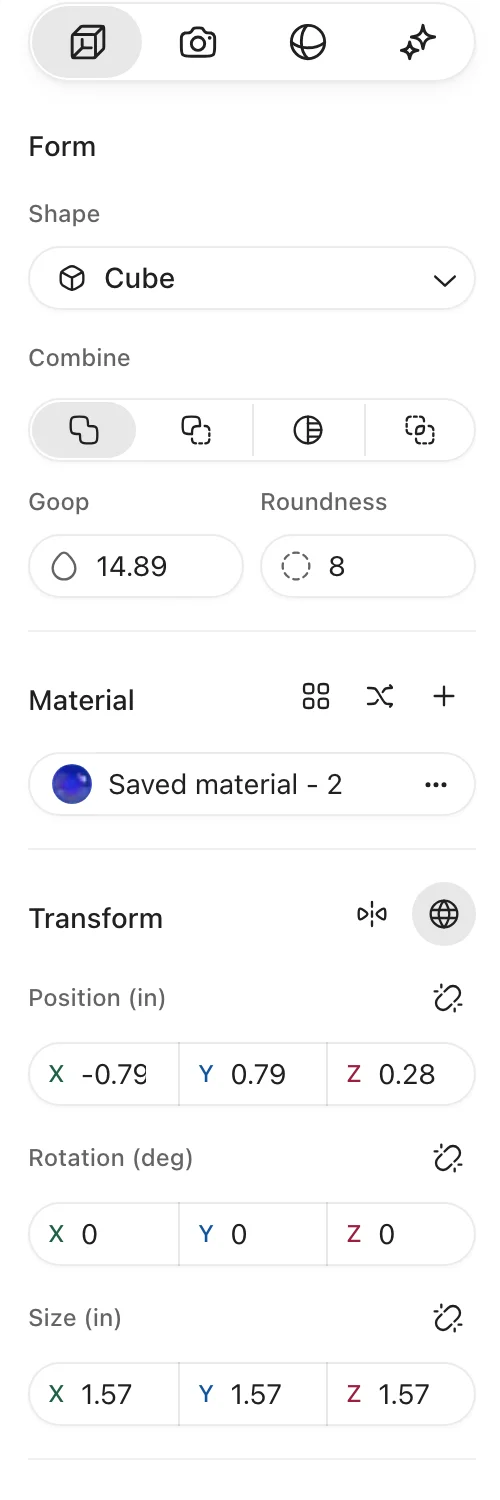
The Object tab of the inspector. Goop sits under Form; drag its slider or type a value. Shapes with a crown need Pro.
Goop blends objects that are close to each other, like clay. Where objects with different materials meet, Goop also blends the materials.
- Select an object.
- In the
Objecttab, drag theGoopslider, or type a value. - Higher values make a wider, softer blend. The slider range grows with the size of the object.
Rules:
- Goop works only between objects in the same area or union.
- The first object in an area or union cannot goop. Its
Goopslider is off. Move the object lower in the list to use it. See Scene list.
Use instead
- Wrong move: raising
Goopon the first object in an area or union. Why: the first object has nothing above it, so itsGoopslider is off. Right move: move the object lower in the scene list, or goop the object below it. - Wrong move: expecting two objects in different areas to blend. Why: Goop works only inside one area or union. Right move: drag both objects into the same area.
- Wrong move: offering a Free user a
TorusorPyramid. Why: onlyCube,Cylinder,SphereandConeare free. Right move: use a free shape, or see Credits and plans for Pro.
Last checked: 2026-11-10. Womp version: Womp web app, November 2026.