Spark (Womp AI)
What Spark (Womp AI) makes, how to open it, how to pick its model, and what it costs in credits.Use this when: you want Womp to generate an image or a 3D model, design a parametric part, build and edit your scene, or build a flow for you.
Don't use this for: hand modelling, or wiring a flow node by node yourself. Read Modelling and Flow (Nodes).
Spark (Womp AI) is the assistant built into Womp. You describe what you want in plain words and it makes it. The left menu calls it Spark. The round button at the bottom right (tooltip Womp AI) opens the same assistant.
Open it
- Choose
Sparkin the left menu to open the Spark page. - Anywhere else, click the
Womp AIbutton at the bottom right. While Spark is working, that button shows what it is doing. - In a project, Spark sits in the
Sparktab of the right panel, next to your scene.
A new chat asks "What do you want to make?" and offers chips and a Try one list of examples. In the 3D Stage the chips are Image, 3D model and Parametric part. Next to a flow they are Build with nodes, and Edit this graph once the flow has nodes. A chip only changes the examples and the hint in the message box. Spark still decides what to do from your words.
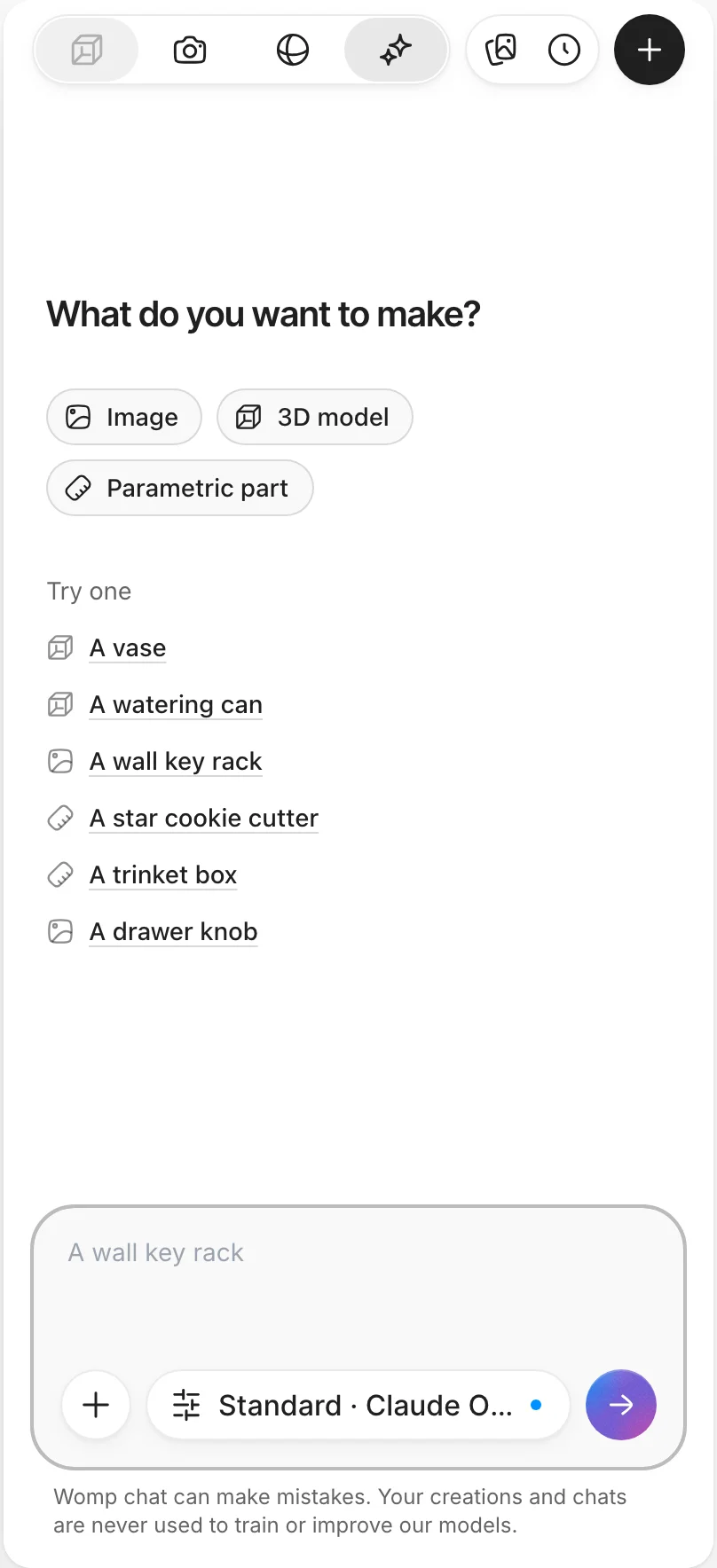
A new chat in the Spark tab. The model button sits under the message box.
You can attach up to 10 images to a message (JPEG, PNG, WebP, AVIF or HEIC).
What it makes
- Images: from a prompt or from images you attach. See Images and 3D models.
- 3D models as one mesh: made from an image. See Images and 3D models.
- Objects in your scene: built from Womp shapes you can edit piece by piece, and changes to what is already there. See Build and edit your scene.
- Parametric parts: measured parts with sizes you can change later. See Text to CAD.
- Flows: Spark adds, connects and changes nodes in your flow, and can explain a graph. See Flow (Nodes).
- Geometry Flow graphs: Spark can build and edit the node graph behind procedural geometry. See Flow (Nodes).
Spark picks the right tool for each message. There are no switches to turn tools on or off.
Building in your scene and parametric parts need a project, and projects need a computer. On a phone, Spark answers questions and makes images and meshes. When you send a message from the Spark page on a computer, Womp creates a new project and opens it with Spark beside the scene.
Choose the model
The button under the message box shows the current model, for example Light and the model name. Click it to pick:
- Presets:
Light,StandardandMax. Each shows the model it uses. Free accounts start onLight. Pro accounts start onStandard. - Choose a model: every assistant model, grouped by provider. If you pick one this way, the button shows only the model name.
- Image and mesh models…: opens a dialog with the
Imagemodel, theImage to meshmodel and theWrite image prompts for 3Dswitch.
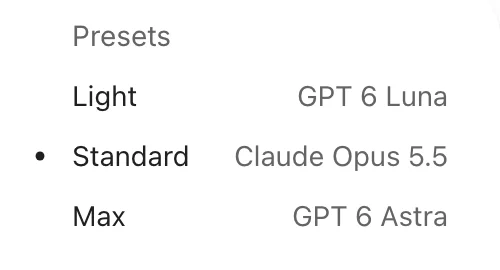
The presets in the model menu. Each preset shows the model it uses today.
A preset shows Unavailable when its model is not offered. The list of models comes from Womp's servers and can change.
Credits
Spark spends Spark credits. The cost depends on the model you pick.
- Images and 3D meshes cost credits from the first one.
- A chat turn that only answers you, and builds nothing, is free. A turn that changes your project (builds or edits the scene, makes a parametric part, edits a flow or Geometry Flow graph, imports into the scene or changes materials) is charged, its chat included. A build that fails is not charged.
- While the offer runs, your first parametric part is free. Suggestions that use it show
Free to try.
When you run out, Spark says "You're out of credits." See Credits and plans for allowances and top-ups.
Use instead
- Wrong move: generating a 3D model and ordering a print of it as is. Why: a generated mesh can have thin parts or tight gaps. Right move: check it against Design rules before you order.
- Wrong move: asking for exact sizes in a generated mesh. Why: a mesh made from an image has no measurements to change. Right move: ask for a parametric part, then set its sizes.
- Wrong move: looking for a Tools menu to turn Spark's abilities on. Why: there is none; Spark picks the tool for each message. Right move: say what you want, for example "a parametric pen cup", and Spark uses the matching tool.
Last checked: 2026-11-10. Womp version: Womp web app, November 2026.