Flow (Nodes)
Womp's node editor, where you connect prompts, images, AI steps and 3D models into a graph you can run again.Use this when: you want a repeatable pipeline, such as text to 3D model, photo to 3D model, or many variations at once.
Don't use this for: one-off generations or hand modelling. Read Spark (Womp AI) and Modelling.
Flow (Nodes) is Womp's node editor. You place nodes on a canvas, connect the output of one to the input of the next, and run the graph. A typical flow reads left to right: a prompt, an image made from it, a 3D mesh made from the image, and the mesh placed in your scene.
Open it
- In a project, switch to
Flow(Alt+1), orSplit(Alt+2) to see Flow and the 3D Stage side by side.3D StageisAlt+3.
A new flow offers Basics and Templates to start from, or Start from scratch. A template gives you a working graph to change.
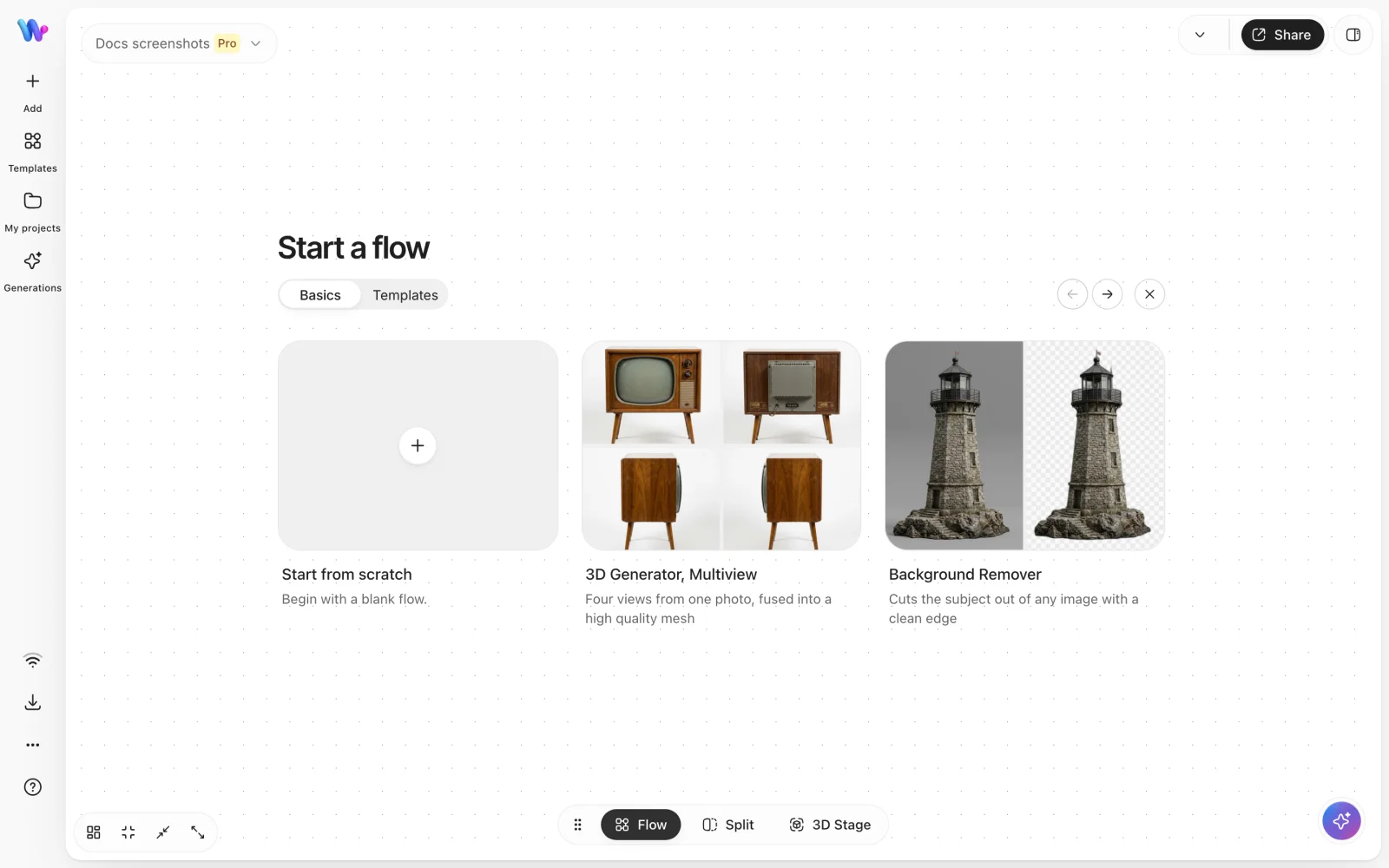
An empty flow. Pick a card from Basics or Templates, or Start from scratch.
Work on the canvas
- Add a node: right-click the canvas. The menu lists the nodes by category.
- Connect nodes: drag from an output handle to an input handle. An input with nothing connected can be typed into on the node.
- Run: click
Run All. No node runs or spends credits until you do. - Shortcuts:
Cmd/Ctrl+Zundo,Cmd/Ctrl+Shift+Zredo,Cmd/Ctrl+Vpaste,Cmd/Ctrl+Aselect all.
Nodes
| Category | Nodes |
|---|---|
| Generate | Generate Image, Generate 3D |
| Inputs | Text, Image, 3D Mesh, Upload your Image |
| LLM | LLM Assistant, Prompt Concatenator |
| Make Smart Asset | The ready-made smart assets available to you |
| 3D Stage | Import to 3D Stage, and the presets Image → 3D Stage and 3D Mesh → 3D Stage |
| (top level, no category) | Full Color Print |
| Enhance Images | Remove Background, Upscale Image |
| Utilities | Label, Sticky Note, Flat Image, Smart Asset, Smart Flow |
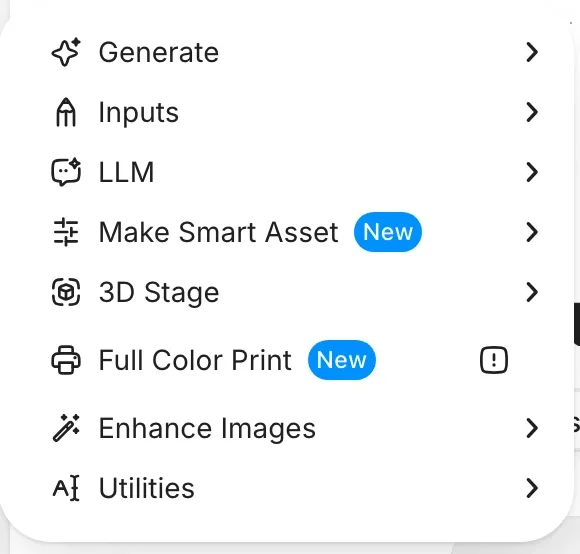
The Add menu in the Flow view lists the node categories.
Label, Sticky Note and Flat Image are notes on the canvas. They do not change the result.
Mesh nodes take .glb, .gltf, .obj, .ply, .stl, .fbx or .zip. Image inputs take any image, HEIC included.
Older flows can hold nodes that are no longer in the menu. They still open and run, but you cannot add them again.
Build a flow with Spark
Open the Spark tab next to your flow. In a new chat, pick Build with nodes and describe the flow, for example "A photo to 3D model flow". Spark adds the nodes and connects them. Once the flow has nodes, Edit this graph asks Spark to change it, for example to add an upscale step or to explain what the graph does.
Spark only edits the graph. To let Spark run your saved flow on your project, turn on Let the agent run flows in your account preferences under Spark AI. It is off by default, and a run writes its inputs into the flow.
Geometry Flow
Geometry Flow is a separate node editor for procedural geometry. Its nodes make and change shapes in your scene instead of calling AI models. It needs Womp Pro and a Pro project on the current engine, and it is marked experimental.
- Open it: in a project, open
Functionsin the left toolbar and chooseGeometry Flow CanvasunderExperimental. - Add a node: right-click the canvas and pick a node, or type in
Search nodes.... - Spark: Spark (Womp AI) can build and edit Geometry Flow graphs for you in a project.
The node list comes from the editor and can change. It currently includes:
| Category | Nodes |
|---|---|
| Geometry | Bake into Separate Area, Boolean, Hollow, Inflate, Instance, Lattices, Primitive, Select, Text, Transform |
| Curve | Circle, Curve to Geometry, Curve to Geometry with Profile, Line, Resample, Sample At, Spiral, SVG to Curve |
| Input | Input Area, Input Parameter, Integer, Number, Reference Area, Time Info, Vector |
| Output | Output Area, Output To Area Target |
| Math | Align Rotation to Vector, Clamp, Combine XYZ, Compare, Integer to String, Interpolate, Map Range, Math, Number to String, Polar to Cartesian, Separate XYZ, Vector to Rotation |
| Point | Grid of Points, Grid Points in Volume, Random Points in Volume, Random Points on Surface |
| Random | Random Numbers, Random Vectors |
| Material | Get Materials, Set Material, Set Material By Index |
| Utilities | Bounding Box, Indices, Range of Numbers |
For most models the normal shapes and tools are quicker. Use Geometry Flow when you need many copies, patterns or shapes driven by numbers. See Modelling.
Credits
Nodes that generate spend Spark credits at the rate of the model chosen on the node. Nodes that only pass things along, annotate or import cost nothing. Asking Spark to build or edit a flow is a charged chat turn, even before you run it. Everything a flow generates is also kept in Generations. See Images and 3D models.
Use instead
- Wrong move: building a flow for a single image or mesh. Why: a flow is for steps you will run again. Right move: ask Spark (Womp AI) directly.
- Wrong move: wiring a common pipeline node by node. Why: Spark can build it for you in one message. Right move: pick
Build with nodesin theSparktab and describe the flow. - Wrong move: sending a generated mesh straight to print. Why: it may break print limits. Right move: import it to the 3D Stage and check it against Design rules.
Last checked: 2026-11-10. Womp version: Womp web app, November 2026.