Images and 3D models with Spark (Womp AI)
Make images and 3D meshes with Spark (Womp AI), pick the models that make them, and reuse past results from Generations.Use this when: you want an image, or a single 3D mesh made from an image, and want to bring it into a scene or find it again.
Don't use this for: objects you want to edit piece by piece, or parts with exact sizes. Read Build and edit your scene and Text to CAD.
Spark (Womp AI) can make images and turn an image into a 3D mesh. Each image and mesh costs Spark credits from the first one.
Make an image
Pick the Image chip in a new chat, or just describe the picture. You can attach up to 10 images (JPEG, PNG, WebP, AVIF or HEIC) as references or as the image to change.
Each image comes back as a card with buttons:
Make 3D: turns the image into a 3D mesh.Edit: changes the image with a new prompt.Upscale image: makes it larger,Upscale 2x,4xor8x.Download image.
The More options menu on the card also has Create 3D model, Edit image, Upscale, Add to scene as image, Add to scene as sticker (Pro), Remove background, View full screen and Download.
You can also ask in words, for example "make the second one orange" or "now turn it into a 3D model".
Make a 3D mesh
A mesh is made from an image. Make or attach an image, then click Make 3D or ask Spark to turn it into a 3D model.
A mesh is one object. You cannot edit its parts or change its sizes later. For that, see Build and edit your scene or Text to CAD.
Each mesh comes back as a card with a 3D viewer and these buttons:
Download mesh.Add to scene, withAdd to libraryin the same menu.3D Print: adds the mesh to your project and opens Print mode. Not on phones.
Tip: get the image right first. Images are quicker to redo, and a clear image of one object on a plain background gives a cleaner mesh.
Pick the models
Open the model button under the message box and choose Image and mesh models…. The dialog has:
Image: the model that makes images.Write image prompts for 3D: rewrites your image prompts so the image works as a 3D model. Turn it on when the image is a step towards a mesh, off when the image is the final result.Image to mesh: the model that makes meshes from images.
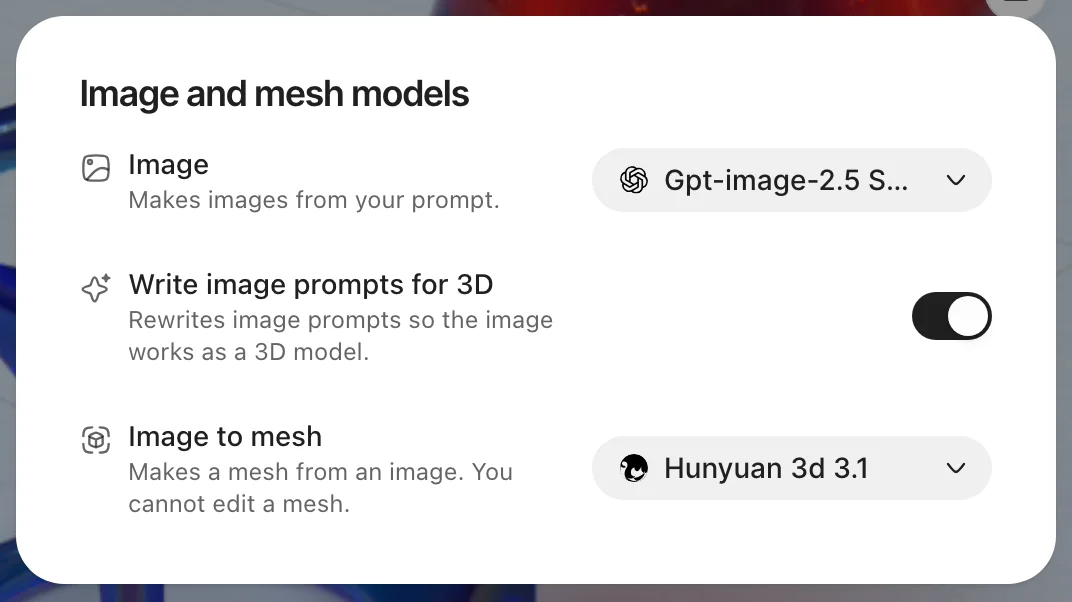
The Image and mesh models dialog, opened from the model button under the message box.
Each picker lists the models you can use, and Pro models in a group of their own. Pro models cannot be picked without Pro. The models and their credit costs come from Womp's servers and can change, so check the picker.
The pickers showed these models on 10 November 2026. Credits are per generation; a range means the cost depends on the settings.
| Picker | Pro | Standard |
|---|---|---|
| Image | Gpt-image-2.5 Sunburst (160), Nano Banana Pro (160), Gpt-image-2.5 Flare (160), Flux.2 Pro (120) | Nano Banana 2 (160), Gpt-image-2 (160), Qwen Image 3 (220), Flux.2 Klein (20) |
| Image to mesh | Hunyuan 3d 3.1 (360 to 740), Rodin Gen-2.5 (500) | Trellis3d (20), Hunyuan 3d 3 Turbo (280), Hunyuan 3d 3 (360 to 740), Trellis.2 (60) |
Find past results in Generations
Every image and mesh you make, in a chat or in a flow, is kept in Generations.
- Library: open
Libraryand chooseGenerations(AIon narrow screens). Filter byAll,Imagesor3D. Each result shows where it came from and what it cost, and you can download it. - In a project: click
Generationsin the left toolbar of the 3D Stage, then pick a result to add it to your scene. An image comes in as an image, a mesh as an object.
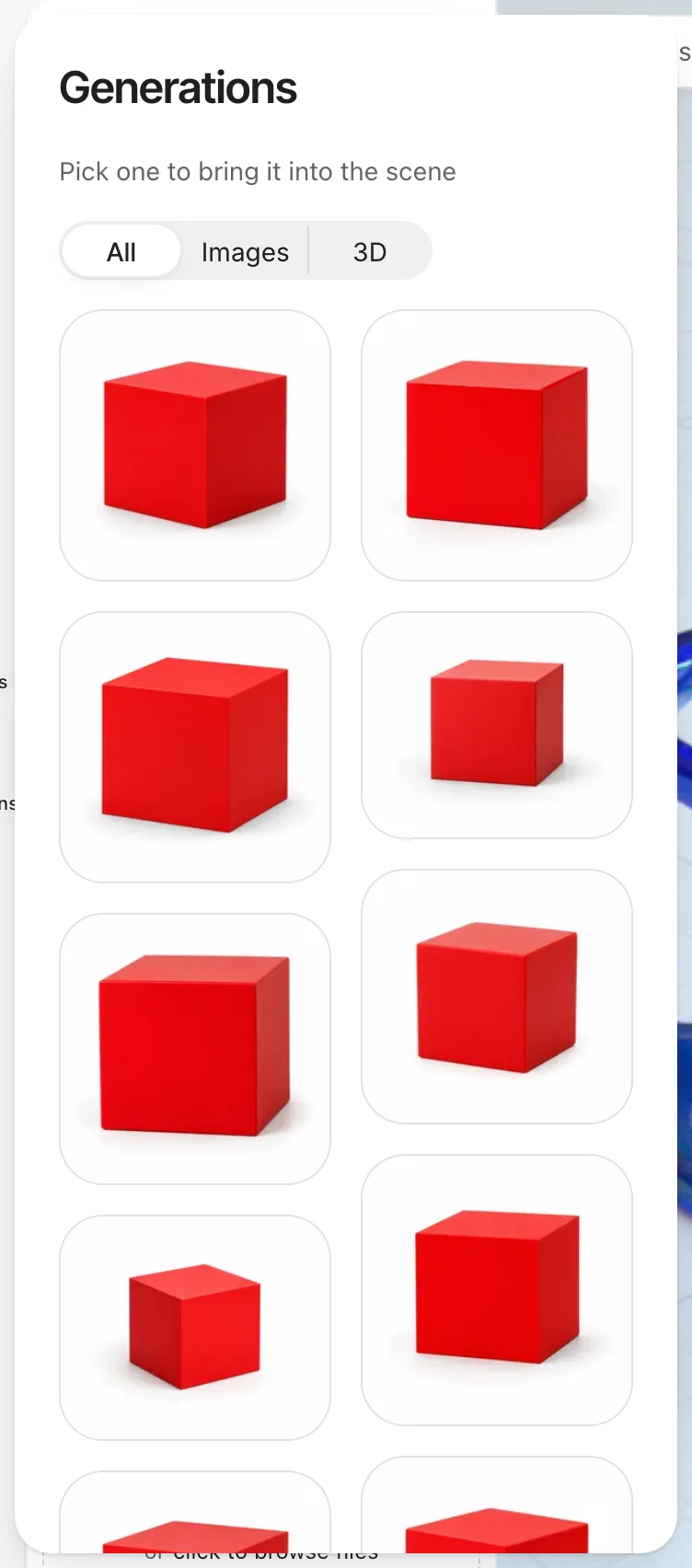
The Generations panel in the 3D Stage. Click a result to add it to the scene.
Adding a past result does not make it again, so it does not spend credits on a new generation.
Use instead
- Wrong move: describing last week's result again to get it back. Why: a new prompt makes a new result and spends credits again. Right move: add the original from
Generations. - Wrong move: generating a mesh of a part that has to fit something. Why: a mesh has no sizes you can change. Right move: ask for a parametric part.
- Wrong move: sending a generated mesh to print without checks. Why: it can have thin walls or tight gaps. Right move: check it against Design rules first.
Last checked: 2026-11-09. Womp version: Womp web app, November 2026.